
Acer 4-in-1 USB C Hub
4.2Editor score
Dual 4K@60Hz output
100W power delivery
Compact 4-in-1 design
This guide compares the top 10 dual HDMI monitor adapters for productivity, featuring USB-C and DisplayPort options with 4K support and multi-monitor connectivi
Finding the right dual HDMI monitor adapter can transform your workspace into a productive multi-screen environment. Whether you need to extend your desktop or mirror content, choosing the correct connectivity type is essential for smooth performance.
We compared ten leading models based on resolution support, operating system compatibility, and connection types like USB-C and DisplayPort. Each product was evaluated for build quality, driver requirements, and real-world usability for professionals.
Each pick highlights specific strengths such as 4K output, power delivery, or broad OS support. Keep in mind that product availability and pricing can change frequently, so verify details before making your final purchase decision.
4.2Editor score
4.5Editor score
4.1Editor score
Below is a detailed side-by-side comparison of all ten dual HDMI monitor adapters evaluated in this guide. Review the specs to find the perfect match for your laptop or desktop setup.


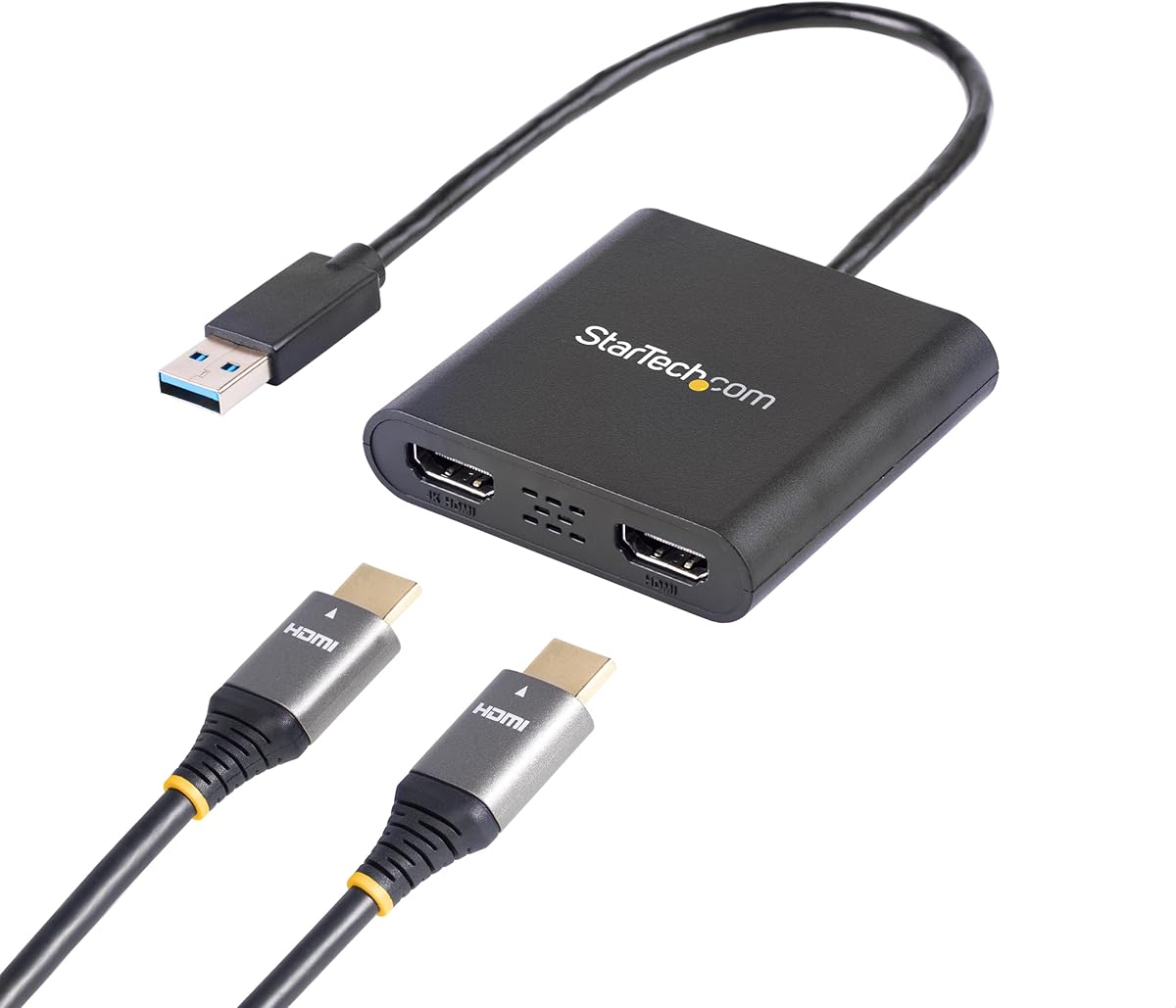
The StarTech USB-A 3.0 to Dual HDMI Adapter stands out as a reliable choice for Windows users needing a second screen. With a 4.5 rating, it offers robust connectivity for extending desktops with one 4K monitor at 30Hz and another at 1080p 60Hz.
We may earn a commission when you buy through this link, at no additional cost to you.
Its key strength lies in its stability and IT-grade build. Designed for professionals, it supports Intel, AMD, and Snapdragon platforms. The included 3-year warranty and free lifetime technical assistance provide long-term peace of mind for office setups.
A notable trade-off is its strict Windows-only compatibility. macOS, ChromeOS, and Linux users are excluded entirely. Additionally, administrator rights are needed for driver installation, which might be a hurdle on restricted corporate devices.
If you run a Windows workstation and need a dedicated dual-monitor solution without Thunderbolt dependency, this adapter is highly recommended. Its proven reliability makes it a top pick for enterprise and home office users.
Engineered for IT professionals, this adapter ensures consistent video performance without flickering or signal drops during daily tasks.
Backed by a 3-year warranty and 24/5 multilingual technical support, ensuring help is available whenever issues arise.
We may earn a commission when you buy through this link, at no additional cost to you.
The Acer 4-in-1 USB C Hub delivers impressive value with dual 4K@60Hz HDMI output at a competitive price point. Rated 4.2, it transforms USB-C laptops into powerful workstations with high-speed data transfer and charging capabilities.
We may earn a commission when you buy through this link, at no additional cost to you.
Its main advantage is the combination of video and power. The 100W PD port charges your laptop while using both displays. The USB-A 5Gbps port allows quick file transfers, making it ideal for dynamic workflows requiring data and visuals.
However, the cable is only 20cm long, which may limit desk placement flexibility. Also, macOS users should note that extended mode is not supported, restricting them to mirroring across external screens.
For budget-conscious users with USB-C laptops needing fast refresh rates and charging, this hub is an excellent choice. It balances performance and cost better than most competitors in its class.
Equipped with HDMI 2.0 and USB-A 5Gbps, this hub handles large files and high-resolution video streams seamlessly.
The 100W PD port ensures your device stays powered during long work sessions without needing an extra charger.
We may earn a commission when you buy through this link, at no additional cost to you.
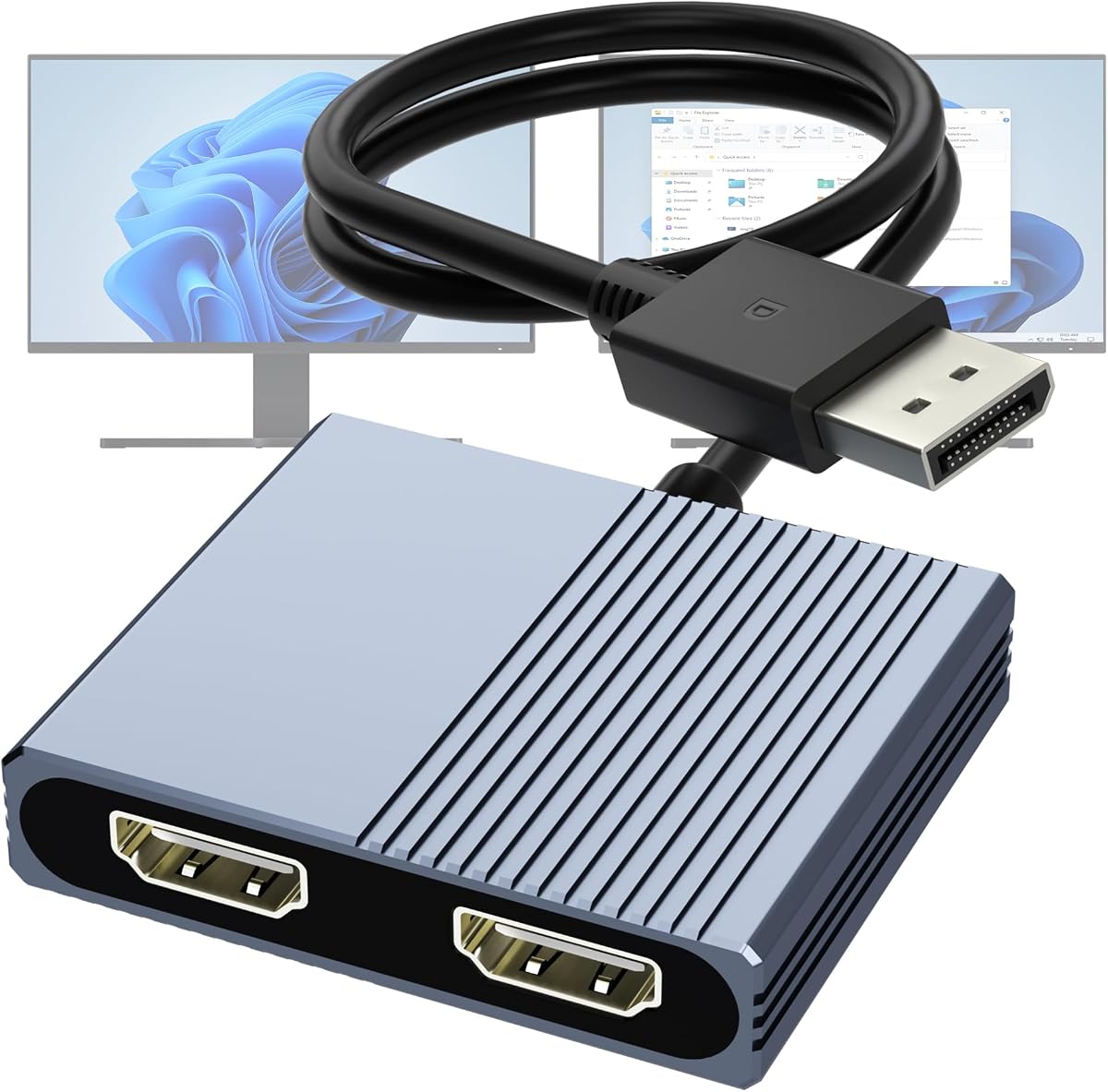
For users with dedicated graphics cards, this DisplayPort to Dual HDMI Adapter offers premium dual 4K@60Hz performance. It uses MST technology to extend displays without driver hassles, making it a top choice for desktop professionals and creatives.
We may earn a commission when you buy through this link, at no additional cost to you.
The aluminum housing ensures efficient heat dissipation and durability. Its non-locking connector protects ports during removal. The MST support allows independent monitor layouts, maximizing productivity for design and analysis tasks.
It does require a DP1.4 port and an external USB power source for stable operation. Users with older DP1.2 cards may face resolution limits. This hardware dependency might complicate setup for some laptop users.
If you need smooth dual 4K visuals and have a compatible DP source, this adapter is worth the investment. Its build quality and performance justify the higher price for serious multi-screen setups.
Delivers crisp 4K@60Hz rendering, ensuring smooth scrolling and clear text for high-resolution workflows.
Built with layered shielding and an aluminum alloy body for reliable signal transmission and longevity.
We may earn a commission when you buy through this link, at no additional cost to you.
The WAVLINK adapter supports both USB-A and USB-C inputs, making it versatile for various devices. With a 4.4 rating, it extends displays to 4K@30Hz or 1080p@60Hz, suitable for general office productivity and multitasking.
We may earn a commission when you buy through this link, at no additional cost to you.
Its cross-platform support is a major plus, covering Windows, macOS, Chrome OS, and Android. This broad compatibility means it fits well in mixed-device environments without needing specific ports.
Installation requires drivers, which can be inconvenient on managed systems. It also advises against gaming use due to latency. Users should expect some setup effort before full functionality is achieved.
This adapter is great for users needing a flexible connection type across different operating systems. Just be prepared to download drivers and manage expectations regarding refresh rates for gaming.
Supports USB-C, USB 3.0, and even Thunderbolt 3/4 connections for wider device coverage.
Works across Windows, macOS, Chrome OS, and Android OTG, ideal for shared workspace environments.
We may earn a commission when you buy through this link, at no additional cost to you.
The OREI SplitExtend adapts easily to various USB ports via its integrated USB-A to USB-C adapter. With a 4.1 rating, it supports dual monitors with 4K@30Hz output, ideal for general office productivity without heavy graphics load.
We may earn a commission when you buy through this link, at no additional cost to you.
Its hardware support across Windows, macOS, Chrome OS, and Android 7.1+ offers excellent versatility. This makes it useful for organizations or individuals using multiple platforms within the same workspace setup.
An Intel i5 processor or higher is recommended for smooth operation. Driver installation is required, so users must ensure their system permissions allow it. Older or underpowered machines might struggle with performance.
If you need a flexible dual-monitor solution that works across different operating systems, this is a solid contender. Just verify your processor meets the minimum requirements before purchasing.
Features an integrated adapter to connect to both USB-A and USB-C ports effortlessly.
Backed by 1-year manufacturer support for a reliable, worry-free experience.
We may earn a commission when you buy through this link, at no additional cost to you.
The Selore 8-in-1 docking station offers extensive connectivity beyond dual displays. Rated 4.4, it includes USB-A, USB-C, SD card reader, and dual 4K@60Hz HDMI ports, making it a comprehensive solution for laptop users.
We may earn a commission when you buy through this link, at no additional cost to you.
Its standout feature is the 100W power delivery, ensuring your laptop charges while all ports are in use. The SD/microSD slot provides quick access to media files without needing extra dongles or hubs.
However, macOS users are limited to mirror mode only, losing extended desktop functionality. Also, it needs a full-featured USB-C port, so devices with data-only ports won't work for video output.
For Windows users needing maximum connectivity and power, this docking station is highly effective. Its all-in-one design reduces clutter and maximizes desk efficiency significantly.
Delivers 85W output for charging while using all other ports, keeping devices powered.
Includes an SD/microSD card reader allowing quick photo and video transfers directly to your laptop.
We may earn a commission when you buy through this link, at no additional cost to you.
This HDMI splitter provides the simplest way to mirror content across two displays. With a 4.1 rating, it requires no drivers and works immediately with HDMI sources like TVs, consoles, or PCs for consistent mirrored visuals.
We may earn a commission when you buy through this link, at no additional cost to you.
Its main benefit is ease of use. You simply connect the source and two displays. The audio sync ensures both screens play sound together without needing extra cables or complex setups.
However, it does not support extended mode. Both screens will show the exact same content. This limits its utility for multitasking but makes it perfect for presentations or signage.
If your goal is to duplicate your screen across two devices without extra software, this is the ideal choice. It is affordable and straightforward for basic mirroring tasks.
No driver installation needed; simply connect and configure your display settings for mirrored output.
Ensures audio signals are synchronized with HDMI output, eliminating the need for extra audio cables.
We may earn a commission when you buy through this link, at no additional cost to you.
The Selore&S‑Global USB‑C adapter delivers solid dual 4K@60Hz performance for users prioritizing visual fidelity. With a 4.5 rating, it includes a USB-A data port and a 100W PD charging port, offering comprehensive connectivity.
We may earn a commission when you buy through this link, at no additional cost to you.
Its USB-A 5Gbps port is great for transferring files while using multiple monitors. The compact design makes it portable, fitting easily into laptop bags for travel and on-the-go work needs.
MacOS users face limitations with extended display, restricted to mirroring. Also, your laptop must have a full USB-C port with DP Alt Mode for video to work correctly.
This adapter is excellent for Windows users needing a portable dual-screen setup with charging. It balances performance and convenience effectively for hybrid work scenarios.
Sleek design fits easily into laptop bags, making it ideal for hybrid work environments.
Features a USB-A 5Gbps port for efficient large file transfers while connected.
We may earn a commission when you buy through this link, at no additional cost to you.
This adapter uses DP1.4 MST technology to provide dual 4K@60Hz output without extra drivers. With a 4.4 rating, it features gold-plated connectors for durability and stable signal transmission over long periods.
We may earn a commission when you buy through this link, at no additional cost to you.
The aluminum housing helps dissipate heat effectively during prolonged use. Its plug-and-play nature makes setup simple once you have a compatible source, enhancing user experience significantly.
However, integrated graphics may not support extended modes properly. You need a dedicated GPU with DP1.4 output for full performance. This limits its compatibility with some budget laptops or PCs.
If you have a powerful desktop with DisplayPort, this hub is excellent for expanding your visual workspace. The build quality ensures long-term reliability for heavy users.
Features 24K gold-plated connectors tested for over 25,000 cycles for reliable connection.
Aluminum alloy housing helps keep the device cool during extended use, preventing overheating.
We may earn a commission when you buy through this link, at no additional cost to you.
The UANTIN 6-in-1 hub simplifies desktop expansion with a driver-free design. Rated 4.3, it offers dual 4K@60Hz HDMI ports, 100W charging, and three USB-A ports, ideal for basic multitasking needs.
We may earn a commission when you buy through this link, at no additional cost to you.
Its compact size makes it easy to carry around for remote work. The ability to connect peripherals like keyboards and mice without software installation adds significant convenience for daily use.
USB-A ports run at 2.0 speeds (480Mbps), which is slower than USB 3.0. Also, macOS users face mirror-only limitations. These small caveats make it less ideal for heavy data transfers.
For users wanting a simple, portable dual-screen solution, this hub is a great value. Just manage expectations regarding USB speeds and macOS extended display options.
Slim, lightweight build fits easily into your laptop bag, making it the perfect USB-C companion for hybrid work.
Features three USB 2.0 ports allowing you to easily connect a keyboard, mouse, or printer.
We may earn a commission when you buy through this link, at no additional cost to you.
Selecting the right adapter depends on your ports, OS, and resolution needs. Understanding key factors will help you avoid compatibility issues and find the best fit.
Check your device's ports before buying. USB-C with DisplayPort Alt Mode is common on modern laptops, while older PCs may use DisplayPort or USB 3.0. Ensure the adapter matches your laptop's output type to avoid connection failures.
Verify your device supports the correct input protocol before purchasing.
Many adapters work great on Windows but have limited support for macOS. Some models restrict macOS users to mirror mode only, which prevents extended desktops. Always confirm OS compatibility specifically if you use a Mac.
Check OS limitations to avoid restricted functionality on your platform.
Dual 4K setups require high bandwidth. Look for HDMI 2.0 and DP1.4 support to achieve 4K@60Hz on both screens. Older standards like HDMI 1.4 may limit you to 30Hz or lower resolutions across both monitors.
Prioritize HDMI 2.0 and DP1.4 support for smooth 4K@60Hz performance.
Some hubs feature 100W Power Delivery to charge your laptop while connected. This reduces cable clutter and keeps your device powered. Ensure your laptop's port supports PD and you have the right charger for full-speed charging.
Look for 100W PD ports to keep your laptop charged while using multiple screens.
Some adapters require specific drivers to work, especially for USB-A to HDMI conversion. Others are plug-and-play using MST technology. Driver-free models save time but might have limited OS support. Check system requirements before buying.
Decide between plug-and-play or driver-required models based on your workflow.
Short cables (like 20cm) may limit desk positioning. Longer cables provide flexibility but can look cluttered. Also, look for aluminum housings for better heat dissipation and gold-plated ports for durability over time.
Choose adequate cable length and durable materials to fit your workspace.
High-performance adapters like DP MST hubs often require dedicated GPUs. Integrated graphics may not support extended displays or high resolutions. Verify your GPU supports the necessary protocols for multi-monitor output.
Ensure your GPU supports MST or required protocols for dual extended screens.
Reliable brands often offer multi-year warranties and technical support. This is crucial for professional setups where downtime costs money. Check the warranty terms and whether support is available via phone or email.
Prioritize products with multi-year warranties and accessible technical support.
Connect the adapter to your laptop or desktop using the correct cable (USB-C, USB-A, or DP). Ensure your device is powered on before plugging in to avoid potential signal handshake issues.
Connect your HDMI monitors to the adapter's ports. Adjust display settings in your OS (Windows Settings or macOS Display Settings) to set extended or mirrored mode as needed.
Clean ports with a dry cloth to prevent dust buildup. Avoid frequent plugging/unplugging to prevent port wear. If overheating occurs, ensure airflow around the hub is not blocked.
Only if your USB-C port supports video output (DisplayPort Alt Mode). Older laptops may have charging-only USB-C ports that cannot transmit video. Check your laptop specs to confirm video support before purchasing.
No. Many adapters only support mirroring on macOS due to limitations in how Apple handles external displays. For true extended mode on a Mac, you need an adapter that explicitly supports DisplayPort MST or specific macOS drivers.
USB-A to HDMI or USB 3.0 to HDMI adapters rely on software to convert data signals into video. Native video ports like HDMI or DisplayPort usually don't need drivers. Check if the adapter is plug-and-play before buying.
60Hz provides smoother motion and responsiveness, crucial for video editing or general scrolling. 30Hz may feel slightly choppy but is acceptable for static content like documents. Choose 60Hz for the best visual experience.
These adapters support two HDMI outputs maximum. To connect three or more screens, you would need additional ports on your computer or another adapter. Check your laptop's native video outputs for extra capacity.
Some HDMI splitters work with consoles for mirroring, but most USB adapters do not support console video input. For gaming, use direct HDMI connections or specific HDMI splitters designed for consoles only.
The StarTech USB-A adapter leads for Windows reliability, while the Acer hub offers great value for modern USB-C users. Both provide solid performance without breaking the bank.
Prioritize resolution and OS compatibility when choosing. If you need smooth 4K visuals on macOS, check for specific model limitations. Windows users have broader options for extended displays.
Prices and stock levels change often. Verify current availability and compatibility specs on the product page before purchasing to ensure you get the right adapter for your needs.